Showing posts with label komputer. Show all posts

8 March 2009

Rapidshare Premium Accounts =)

Login:6202443
Password:gUYuBCXBzJ

Login:7028152
Password:LwBz78LYjx

Login:682043
Password:834105

Login:5924792
Password:hd7gw5L4kW

Login:4224396
Password:5QgPwZaaeU

Login:184163
Password:avazshod

Login:7865271
Password:wwLLhC8R

Login:pc22
Password:mms130

19 April 2008

overheat laptop !


bayangkan jika saat menggunakan laptop, tiba-tiba laptop anda meledak! mengerikan bukan? meledaknya laptop biasanya disebabkan karena kepanasan [kepansaan]. untuk menghindari hal ini, anda dapat melakukan hal-hal dibawah ini :

  1. Bersihkan sistem ventilasi pada laptop dengan kompresor.
  2. Selalu letakkan laptop di permukaan yang keras. Hindari meletakkan laptop di selimut, kain wool atau permukaan lembut lainnya yang dapat menghalangi angin dan pertukaran udara.
  3. Matikan laptop sebelum memasukkannya ke dalam kotak/tas. Jika Anda tidak ingin mematikannya, atur laptop dalam kondisi hibernate. Hal ini penting untuk mencegah terjadinya proses peningkatan panas. Jangan sekali-kali meletakkan laptop yang sedang beroperasi di tempat yang sempit, ini bisa meningkatkan panas.
  4. Instal software monitoring, seperti SpeedFan, yang memungkinkan Anda untuk mengawasi dan memantau suhu prosesor, hard drive dan komponen lainnya.
  5. Atur setting power untuk mencegah panas berlebih pada komponen seperti layar dan hard drive. Turunkan power secepatnya jika memang tidak dibutuhkan.
  6. Anda juga bisa menggunakan pendingin laptop yang dapat mencegah panas berlebih.
  7. Jika laptop Anda berpotensi mengalami overheat dan masih dalam masa garansi, jangan ragu untuk melaporkan keluhan Anda tersebut.
  8. Jika Anda berencana membeli laptop baru, jangan gegabah! Telitilah dulu dengan seksama. Cari informasi tentang laptop model dan merek apa yang sering overheat, sehingga Anda tidak menyesal di kemudian hari.[detik.com, dg gubahan seperlunya]

14 April 2008

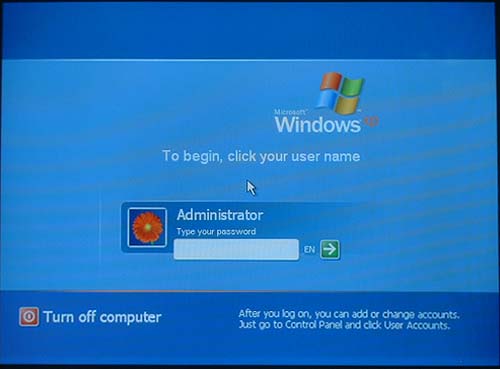
change XP pasword without knowing it


requested by myfriend febry..

he asked me how to change winXP password..

it's so easy, just use this software and you're done!

http://jeyjey.persiangig.com/Download/XPPASSMGR.zip

you can try it!

13 April 2008

Rename Windows Xp Start button to any desired Name

First of all just u need to do is download Resource hacker.

Resource HackerTM is a freeware utility to view, modify, rename, add, delete and extract resources in 32bit Windows executables and resource files (*.res). It incorporates an internal resource script compiler and decompiler and works on Win95, Win98, WinME, WinNT, Win2000 and WinXP operating systems.


First Step The first step is to make a backup copy of the file explorer.exe located at C:\Windows\explorer. Place it in a folder somewhere on your hard drive where it will be safe. Start Resource Hacker and open explorer.exe located at C:\Windows\explorer.exe
The category we are going to be using is String Table In Resource Hacker. Expand it by clicking the plus sign then navigate down to and expand string 37 followed by highlighting 1033. If you are using the Classic Layout rather than the XP Layout, use number 38. The right hand pane will display the stringtable as shown in Fig. 02. We’re going to modify item 578, currently showing the word “start” just as it displays on the current Start button.

There is no magic here. Just double click on the word “start” so that it’s highlighted, making sure the quotation marks are not part of the highlight. They need to remain in place, surrounding the new text that you’ll type. Go ahead and type your new entry

Second Step – Modify the Registry Now that the modified explorer.exe has been created it’s necessary to modify the registry so the file will be recognized when the user logs on to the system. If you don’t know how to access the registry I’m not sure this article is for you, but just in case it’s a temporary memory lapse, go to Start (soon to be something else) Run and type regedit in the Open: field. Navigate to:
HKEY_LOCAL_MACHINE\ SOFTWARE\ Microsoft\ Windows NT\ CurrentVersion\ Winlogon

the Right pane , double click the Shell entry to open the Edit String dialog box as shown in . In Value data: line, enter the name that was used to save the modified explorer.exe file. Click OK.

Close Registry Editor and either log off the system and log back in, or reboot the entire system if that’s your preference. If all went as planned you should see your new Start button with the revised text.

16 October 2007

Modifikasi informasi pada system properties

Saat kita mengklik icon system yang terdapat pada control panel akan muncul kota dialog system property. Kotak dialog ini berisi informasi dan keterangan mengenai komputer dan operating system yang kita gunakan.

—- more —-

Agar komputer kita tampil beda dari pada yang lain, kita bisa mengedit dan memodifikasi system properties ini. Kita bisa mengedit keterangan-keterangan yang ada disana bahkan kita juga bisa memasang gambar pada kotak dialog system properties ini.


Buatlah file oeminfo.ini pada folder C:\windows\system untuk windows 95/98 dan C:\winnt\system32 untuk windows NT, sedangkan untuk windows Xp buatlah file oeminfo.ini pada folder C:\windows \system32. Cara membuat file oeminfo.ini adalah sebagai berikut :

* Buka program notepad, kemudian tulis :

[General]

Manufacturer=Komputer canggih

Model=Model Baru

[Support Information]

Line1=komputer orang ganteng

Line2=yang merasa iri silahkan mencoba..

Line3=maaf yo..

Line4=he..he..he…

* Anda bisa mengganti tulisan di sebelah kanan tanda sama dengan (=) dengan kata-kata yang lain.

* Jika sudah, klik menu file save as kemudian pilih directori tempat penyimpanan file sesuai dengan jenis windows anda.

* Pada tab file name beri nama file oeminfo.ini

* Pada tab save as type pilih all file

* Jika sudah klik save tutup notepad dan restat computer anda

Kita dapat melihat hasil editan denag cara mengklik my computer kemudian pilih properties dan klik tab general seperti pada gambar dibawah ini.


_________________

 
Design by Free WordPress Themes | Bloggerized by Lasantha - Premium Blogger Themes | Blogger Templates